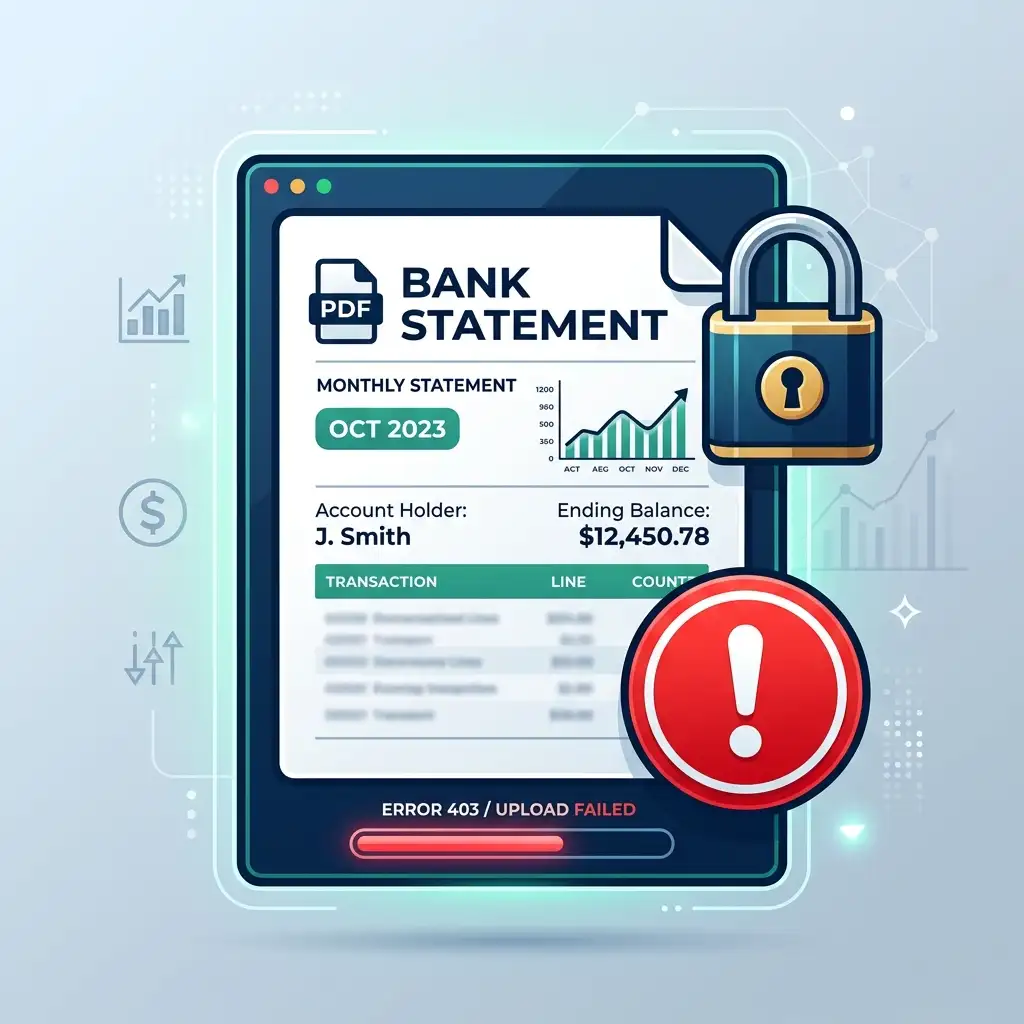
You did everything right. You passed the credit check. You picked your loan amount. You are literally one step away from getting the cash in your hands. Then the app asks for your bank statement, and everything completely breaks down.
You upload the file, the loading circle spins for twenty seconds, and then a red error message pops up. No matter how many times you try, it just will not accept your document. Let's fix this mess so you can finally get your money.
Table of Contents
1. The Real Reason the App Rejects Your File
The biggest mistake borrowers make when figuring out how to upload bank statement in money view app is trying to cheat the system with screenshots. They open their banking app, take three screenshots of their recent transactions, convert them to a PDF, and upload it.
The Money View backend uses an automated bot (Optical Character Recognition) to read the numbers on the page. It cannot read messy screenshots. It needs the pure, original digital PDF generated directly by your bank's servers. If you upload scanned images or blurry photos of a passbook, the bot instantly flags it as an error and throws your application into manual review, which takes days.
2. Decoding the Password Nightmare
So you downloaded the official PDF directly from HDFC or SBI. You upload it, and it still fails. Why?
Because almost every bank in India locks your digital statement with a password. If the Money View bot cannot open the file, it simply rejects it. You have to figure out your exact money view bank statement password format and type it into the app when prompted.
- HDFC Bank: It is usually your Customer ID.
- SBI (State Bank of India): Your 11-digit account number.
- ICICI Bank: The first 4 letters of your name (lowercase) followed by your date of birth (DDMM). Example: neha1508.
- Axis Bank: Your 9-digit Customer ID or the first 4 letters of your name (uppercase) plus your date of birth (DDMM).
If the app refuses to accept the password, try opening the PDF on your computer first. If you can open it there but not in the app, use a free online tool to remove the PDF password completely, save the unlocked version, and upload that one instead.
3. What About the Salary Slip?
Sometimes the app asks for proof of employment alongside the bank records. If you are uploading a money view salary slip upload format, it absolutely must show three things clearly: your company's name, your name, and the final net pay amount.
If your HR department gives you an Excel sheet or a Word document, the app will reject it. You have to save that file as a standard PDF before you even attempt to upload it. If you need specific troubleshooting help regarding file limits, the DigiCert 256-bit SSL document encryption standards lists their exact 5MB file size restrictions.
4. Net Banking Sync vs Manual Upload
If you are completely fed up with PDF errors, just skip the manual upload entirely. The app gives you an option to log in securely via Net Banking. They use a system called Account Aggregator (AA) approved by the RBI.
You log in once, and the system automatically pulls exactly three months of transaction data directly from your bank's servers in ten seconds. It never sees your password, and it cannot touch your money. It is infinitely faster and basically guarantees you won't see a random upload error.
💡 Neha's Smart Tip: If your net salary hits your account on the 5th, but you upload a bank statement that only goes up to the 3rd, the system will assume you have zero income for that month and instantly reject your loan. Always make sure your statement covers your most recent salary credit date.
Applying for a Money View Loan? Skip Processing Fees!
Use verified latest money view promo code YAPUKZNV during sign-up to claim a 0% processing fee waiver and get up to ₹21,000 tiered cashback directly in your bank account.

Written by Neha Kumari in
Finance nerd and ex-loan specialist. I expose hidden fees and help borrowers beat the banking system. Read my story →

User Comments
Loading comments...
Leave a Reply